
If you manage Windows endpoints, you’ve heard this line:
“Our software requires users to be local administrators.”
Sometimes it’s true. Often it’s a shortcut. And almost always it’s a red flag you should interrogate before you grant broad privileges to hundreds or thousands of users.
Here are 9 practical questions that help you separate “truly requires elevation” from “nobody updated the app since 2009.”
1) Does the app need admin to install, or to run every day?
This is the biggest distinction. Many apps need elevation only during installation or updates, not during daily use. If the vendor is conflating those, you may be able to keep users standard and handle installs via IT-managed deployment.
2) What exactly fails without admin?
Ask for a precise failure:
- Which feature breaks?
- What error message appears?
- Which file path or registry key is involved?
If they can’t describe the failure, “needs admin” may be a blanket support script rather than a technical requirement.
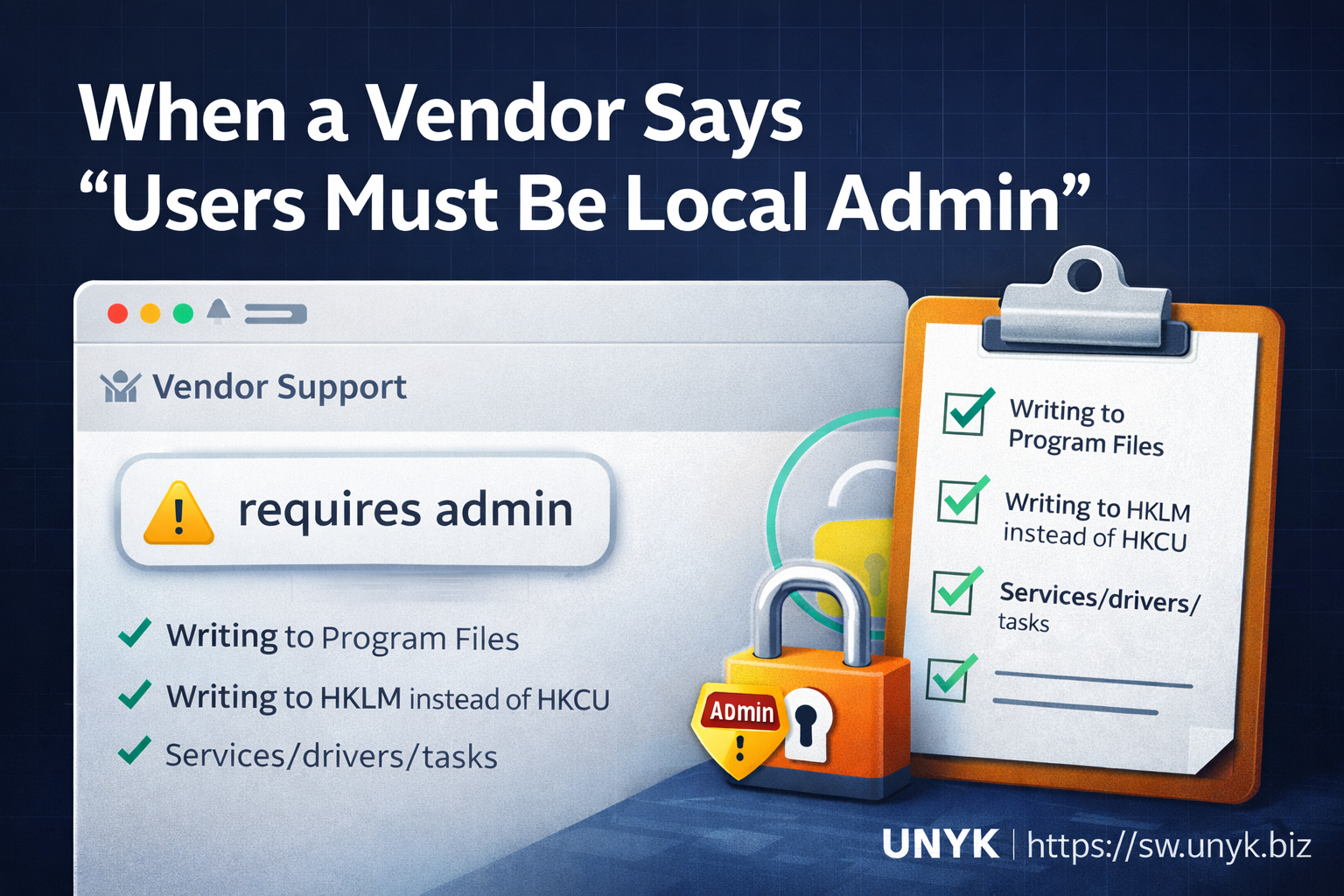
3) Is it writing to Program Files or other protected folders?
A classic legacy behavior is writing config, logs, or data “next to the EXE” under Program Files. That will fail for standard users.
If so, ask whether the app supports redirecting writable data to %ProgramData% or %AppData%.
4) Is it writing to HKLM instead of HKCU?
Another common pattern: machine-wide settings in HKLM when they should be per-user in HKCU. If the issue is a small number of keys, the fix may be targeted rather than “make everyone admin.”
5) Is there a service/driver/task that should be installed once (not on every run)?
If the app needs a Windows service, driver, or scheduled task, that generally requires elevation. But it usually should be done during install, not during routine use.
Ask the vendor: “Can we deploy the service/driver as part of installation and run the UI as standard user?”
6) Is it a self-updater problem?
Some apps embed updaters that attempt to patch binaries in Program Files during user sessions, triggering admin prompts. Often the best answer is: disable the self-updater and update through your standard deployment tooling.
7) Do they actually mean “needs access to a protected resource” rather than “needs admin”?
Sometimes the app needs access to a specific folder, device, certificate store, or registry location. That’s a permissions problem, not a “give the user all privileges” problem.
Ask for the minimum permissions required and which objects they apply to.
8) Do they have an enterprise deployment guide or least-privilege configuration?
Vendors that sell into real corporate environments often have:
- MSI packages
- deployment/packaging guidance
- least-privilege documentation
- GPO/Intune-friendly settings
If none of this exists, you’re likely dealing with a consumer-grade assumption set.
9) What’s the vendor’s roadmap to remove the admin requirement?
If they insist it truly needs elevation to run, ask them to put a timeline on modernization. A “must be admin forever” position should be treated as a risk factor in vendor selection.
A practical compromise: elevate the app, not the user
Even after you push back, you may still have a small set of legacy or specialist apps that genuinely require elevation to run. The mistake most organisations make is solving that narrow problem by giving users broad local admin rights all day.
A cleaner approach is controlled, per-app elevation: keep users standard, but allow only the approved application to run elevated under policy.
Where Elevator for Windows fits
At UNYK, we built Elevator for Windows for exactly this scenario: you want least privilege, but a few apps are blocking you.
- Keep users out of the local Administrators group.
- Allow a short, explicit list of approved apps to run elevated.
- Keep everything else standard.
- Log elevation events so you can see what still depends on admin rights and where.
A simple next step
Pick one “must be admin” app and run a small pilot:
- Document what fails without admin (exactly).
- Ask the vendor the questions above.
- Try a controlled elevation approach for that one app while users remain standard.
If you want to test Elevator with your own problem apps:
Start Free 30-Day Trial Request Elevator Pricing
Related reading: Five Myths About Removing Local Admin Rights on Windows